Important Update: We have ended our relationship with Venice. For a powerful all-in-one AI image and video creation tool, we recommend Dzine.
(Affiliate link)
Prefer listening? Tune into the podcast version below:
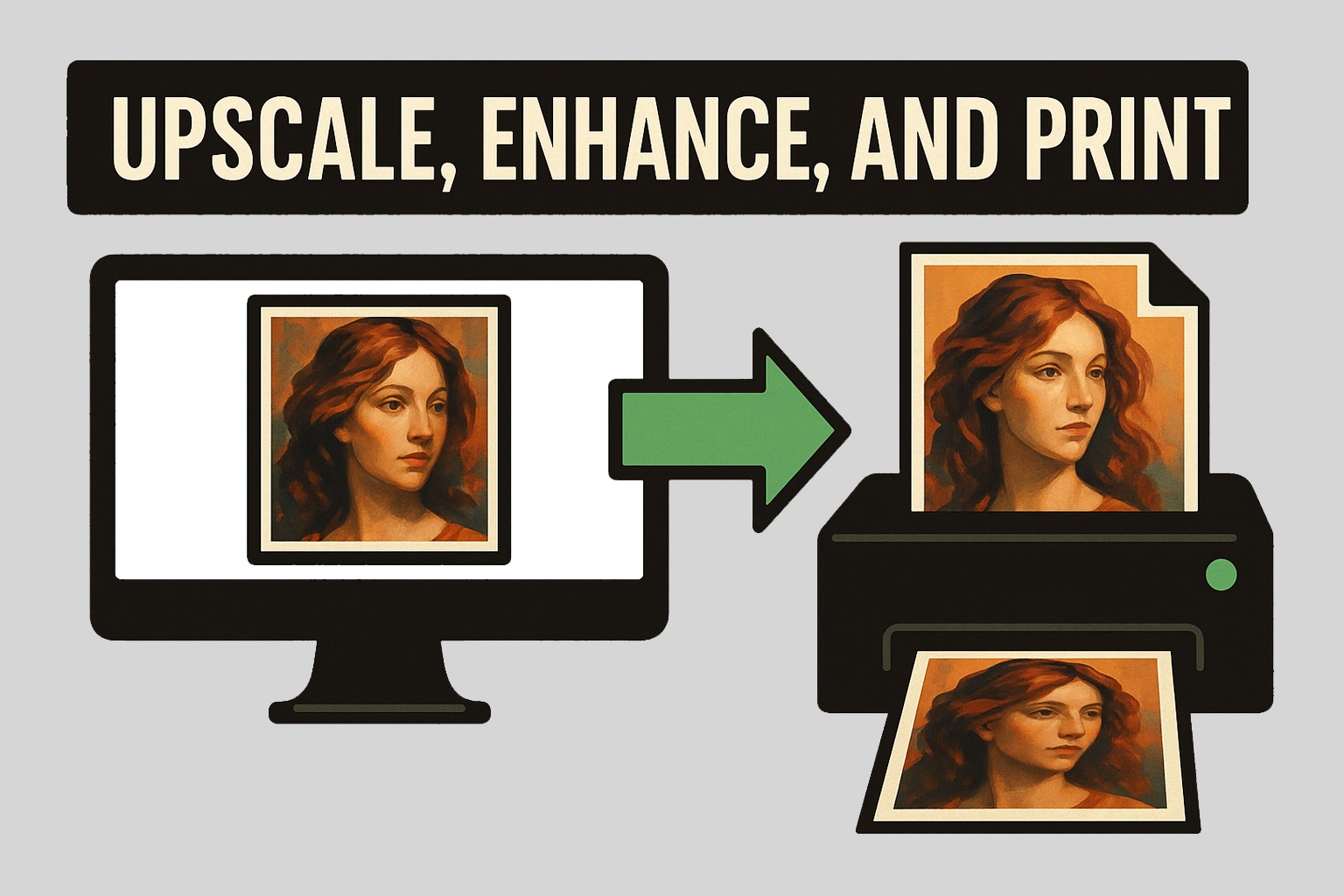
So, you made something beautiful in Midjourney v7 (or any other AI art generator). A real work of (AI) art. Now you want to upscale and print it so you can put it on your wall. That’s a chill idea. Good news: In Venice, you can now upscale any image you’d like (which is a new feature in May 2025). Here’s exactly how to make that happen, without ending up with a blurry mess or confusion about pixels.
Before we go any further, though, there is something you need to know: Midjourney is not a free tool. And upscaling in Venice requires a paid subscription. The good news is you can technically use this process with any tools that do the following: AI art generation, upscaling, and image enhancement. I chose Midjourney and Venice because they are my favorites, and I am fortunate enough in my life to subscribe to both.
Also, yes, you can 4X upscale your Midjourney image right inside of Midjourney if you’d like, by using Discord… but, at the moment, only by using Midjourney v5.2 or lower. And that’s not good. Midjourney is already up to v7.
Also, in my experience, the result isn’t as good as upscaling it in Venice. Venice’s upscaling seems to take it to another level by artistically adding details and maneuvering around blurriness and most AI artifacts. It also provides upscaling options that Midjourney doesn’t offer.
Quick Difference: Original Midjourney Image vs. 4X “Upscale and Enhance” in Venice
The difference was huge in my tests. I zoomed in on both to show you just how much better the 4X upscaled and enhanced image is versus the original.

When you upscale your Midjourney image in Venice, your image will be 4X bigger in each direction. That means your image has 16X more pixels than the original. So yes, it can handle some serious printing now.
How to 4X Upscale Midjourney Images (Or Any Image) Using Venice AI
Let’s get started.
Step 1: Generate an Image in Midjourney v7 (or Any Other AI Art Tool)
Pick your Midjourney prompt. Run it on Midjourney.com. Wait for the image. Midjourney v7 has incredible quality out of the gate. If you haven’t tried it yet, you should.
Step 2: Download the Image

Step 3: Go to Venice AI → Image → Paperclip Icon → “Upscale and Enhance”

Step 4: Select Your Midjourney Image
Upload the one you just downloaded from Midjourney.
Step 5: Click “Enhance Max” at the Bottom

This gives you the highest level of detail Venice offers, as well as the “Enhance” feature. Use it.
Also, consider experimenting with the other settings. Tweak the prompt as needed, and see which Creativity setting you like best. Increasing the Creativity factor gives the AI more wiggle room to add details to your image. I tried it, and it worked nicely in my tests.
Check out Dzine now as a powerful alternative tool for AI image and video creation.
Step 6: Copy/Paste Your Image Size into ChatGPT or Venice
Find the file on your computer, go to info, and find the image dimensions in pixels.

Then, run this prompt in ChatGPT or Venice:
“I have an image that is [enter your image’s width x height in pixels]. What size can I safely print this so that it’s a poster and doesn’t look pixelated?”
Let AI figure all of that sh*t out for you. That’s what it’s there for.
Step 7: Print It
Now you’ve got the exact dimensions. Send it off to a print-on-demand shop. Frame it. Hang it up. You just created art from magic pixel makers. What a time to be alive!
There are plenty of sites that print on demand. Lumaprints.com and Redbubble.com are considered fan favorites (no affiliation). Feel free to find others like them – there are plenty.
BONUS: Try These Free Tools to Visualize It on Your Wall
Want to preview the artwork in your home, bunker, or trailer before printing? Try one of these (no affiliation):
- Wallary AR App (iPhone only) – iPhone app that uses augmented reality to show you how your art will look on any wall (even the one with a hole in it).
- WallApp from ArtHeroes – A Simple website that lets you upload your art and wall to visualize how it will look. Word of warning: make sure the image of your wall is not taken at an angle. The tool only works when it’s a straight-on shot.
Wrapping It Up
There’s a huge difference between “cool image on your screen” and “awesome art on your wall.” Most people stop at the screen. You didn’t. Or won’t. Or maybe you will. But… don’t.
With Midjourney and Venice, you’ve got what I consider pro-level tools in your corner. No design degree is required. Just some prompting and patience.
So go print something. Put it on your wall. Let people ask where you bought it—then tell them you made it… because you did (kind of).
Until next time, be sure to run the prompts and prompt the planet.
Disclaimer: This article is for educational purposes. You are solely responsible for your use of any AI services mentioned and must comply with all applicable laws. The author is not responsible for any consequences or damages arising from your use of these services.