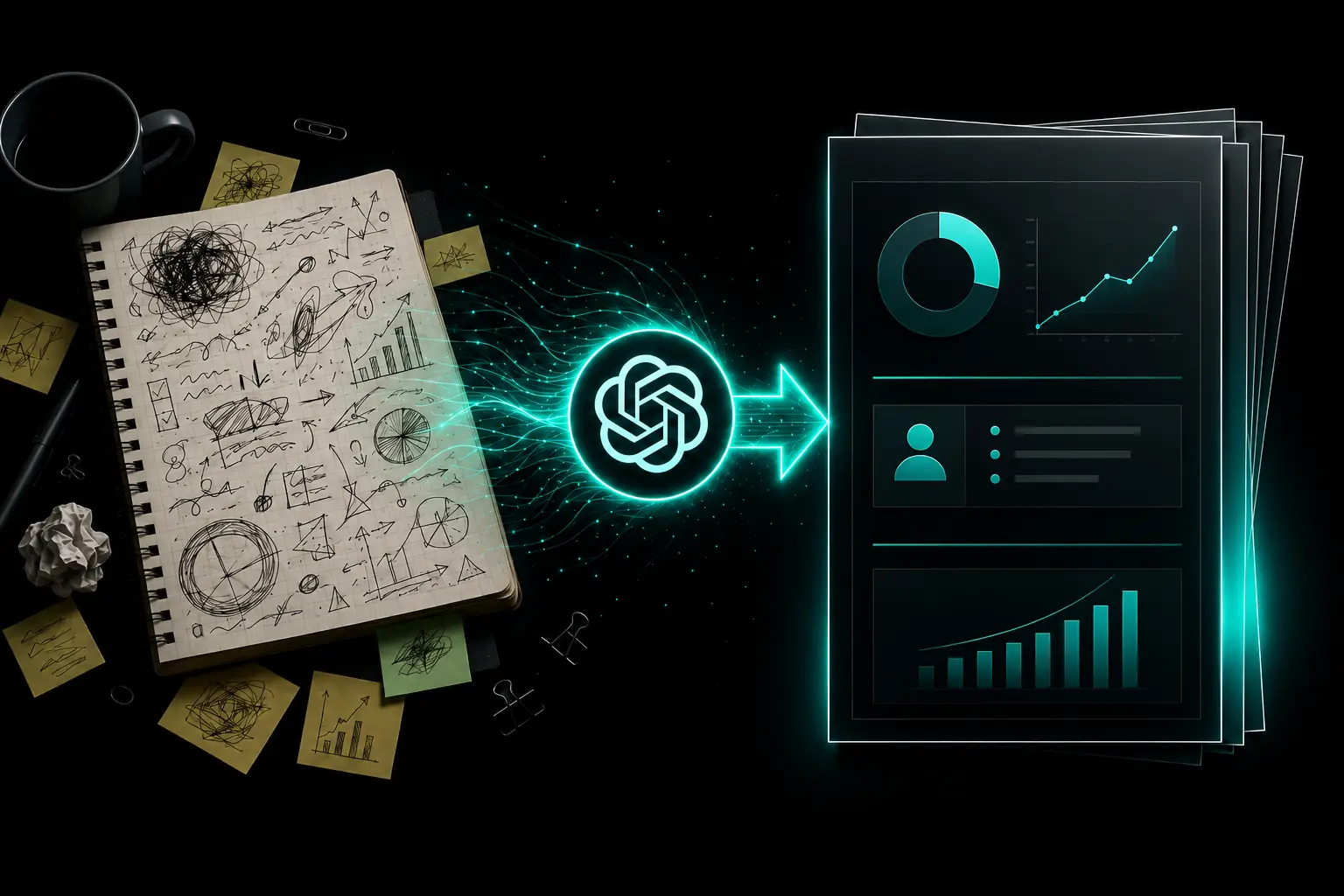
Making a presentation is one of the most tedious tasks in any office job or student workload. Organizing the information is annoying enough. Then you have to build every slide, fix the formatting, and move text boxes around until your will to live in this world begins fading.
The good news is ChatGPT Work can now handle most of the heavy lifting.
Released in July 2026, ChatGPT Work can create documents, spreadsheets, presentations, and other finished files from your instructions and source material. Its new Presentations plugin is impressive and somewhat similar to tools such as Gamma (no affiliation). Gamma provides more editing, branding, and customization options; however, it’s a separate tool and a separate price tag.
ChatGPT Work and its presentation-creation tools, such as this plugin, are available on the Free plan through the ChatGPT desktop app, although availability, usage limits, and web access can vary by plan.
Let’s party.
How to Create the Presentation with the Plugin in ChatGPT Work
First, open ChatGPT Work and enable the Presentations plugin in the Plugins sidebar.

Then attach your notes or paste them directly into this prompt:
Read my notes (attached) and create a project plan with [objectives, milestones, owners, deadlines, risks, and next steps] and turn it into a beautiful and professional-looking PDF presentation using @Presentations.

Insert your notes below or attach a file.
Modify the bracketed sections based on what your notes contain and what you want to include in the PDF. You can also specify:
- The sections you want included or avoided
- The number of slides
- How much content should appear on each slide
- The intended audience and design style
- Whether to include charts, tables, timelines, or diagrams
- Pretty much anything else
ChatGPT will organize the notes, create the content, design the slides, and provide PDF and PowerPoint versions.
Here’s a screenshot of the output it gave me from some sample notes that I generated with AI:

Add Your Branding to the PDF
Once the first presentation is finished, enter this optional follow-up prompt to brand your design:
Now, go to [yourwebsite.com], study the branding, colors, fonts, and logo, and use those to make a branded version of those files.Replace the placeholder with your website.
Here’s an example of what it produced for me:

The branding probably will not be 100% perfect. You may need to adjust a font, color, logo, or slide layout manually. You can also attach an existing branded presentation or template to give ChatGPT a better reference.
The finished PowerPoint file can be edited normally or imported into Google Slides. The PDF version is ready for sharing once you have reviewed it.
Students can use the same process for research, class projects, and presentations. Just do not use it to cheat. Let AI handle the tedious slide production, not the learning and thinking you are supposed to do yourself. Remember the golden RTP formula: AI + your brain.
Wrapping It Up
ChatGPT Work and the Presentations plugin can turn a pile of sloppy, random notes into a surprisingly beautiful slide deck. You will need to make some adjustments, but that beats spending hours building the entire stupid thing from scratch.
Try the prompts and add a comment below telling me how your presentation turned out and if you think we left off any useful tips.
Until next time, remember to run the prompts and prompt the planet.